A 5 MB photo from your phone is fine for printing but terrible for a website. It slows down page load, eats mobile data, and gets flagged by every performance tool. Compression solves this — you trade a controlled amount of quality for a much smaller file.
What you need
A browser. The compression engine downloads once on first use (about 8 MB), caches itself, and runs locally after that. No account, no upload. Works on desktop and mobile.
Step 1 — Upload your image
Go to the Image Compressor and drop your photo onto the page. PNG, JPG, WebP, and AVIF all work. You can also click the upload area to browse your files.
Step 2 — Pick a preset
Four options:
- Recommended — the tool picks the best balance of quality and file size automatically. Start here.
- For Web — targets under 200 KB. Good for blog images, product cards, and thumbnails where page speed matters.
- For Email — targets under 1 MB. Large enough to look good in an email client, small enough to avoid attachment limits.
- For WhatsApp — targets under 100 KB. WhatsApp compresses images aggressively on its own. Sending a pre-compressed image gives you control over how it looks.
The tool uses SSIM-aware quality probing to find the highest quality that fits your target size. It does not just slam the quality slider to a low number — it searches for the sweet spot where the file shrinks but the image still looks sharp.
Step 3 — Compare and download
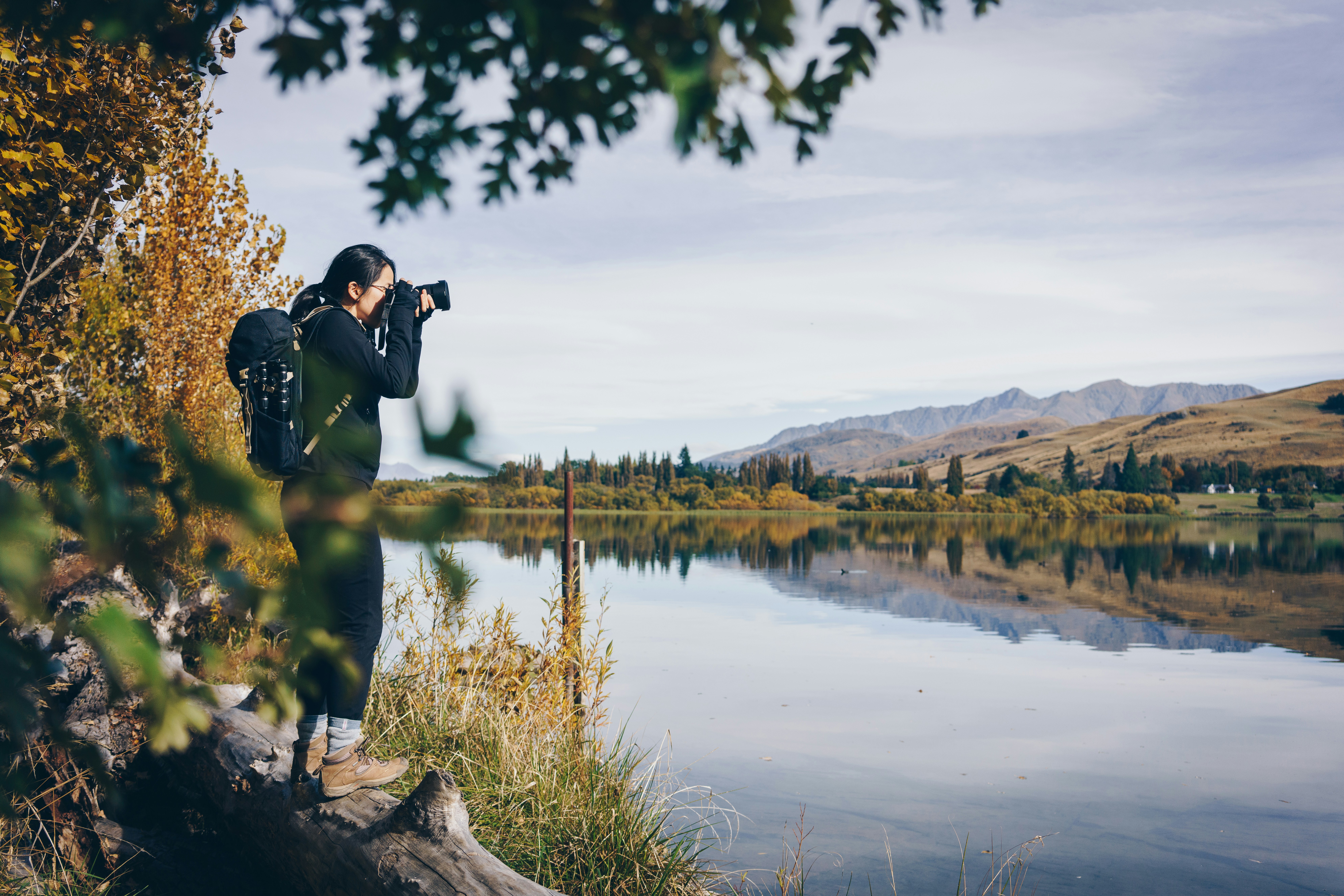
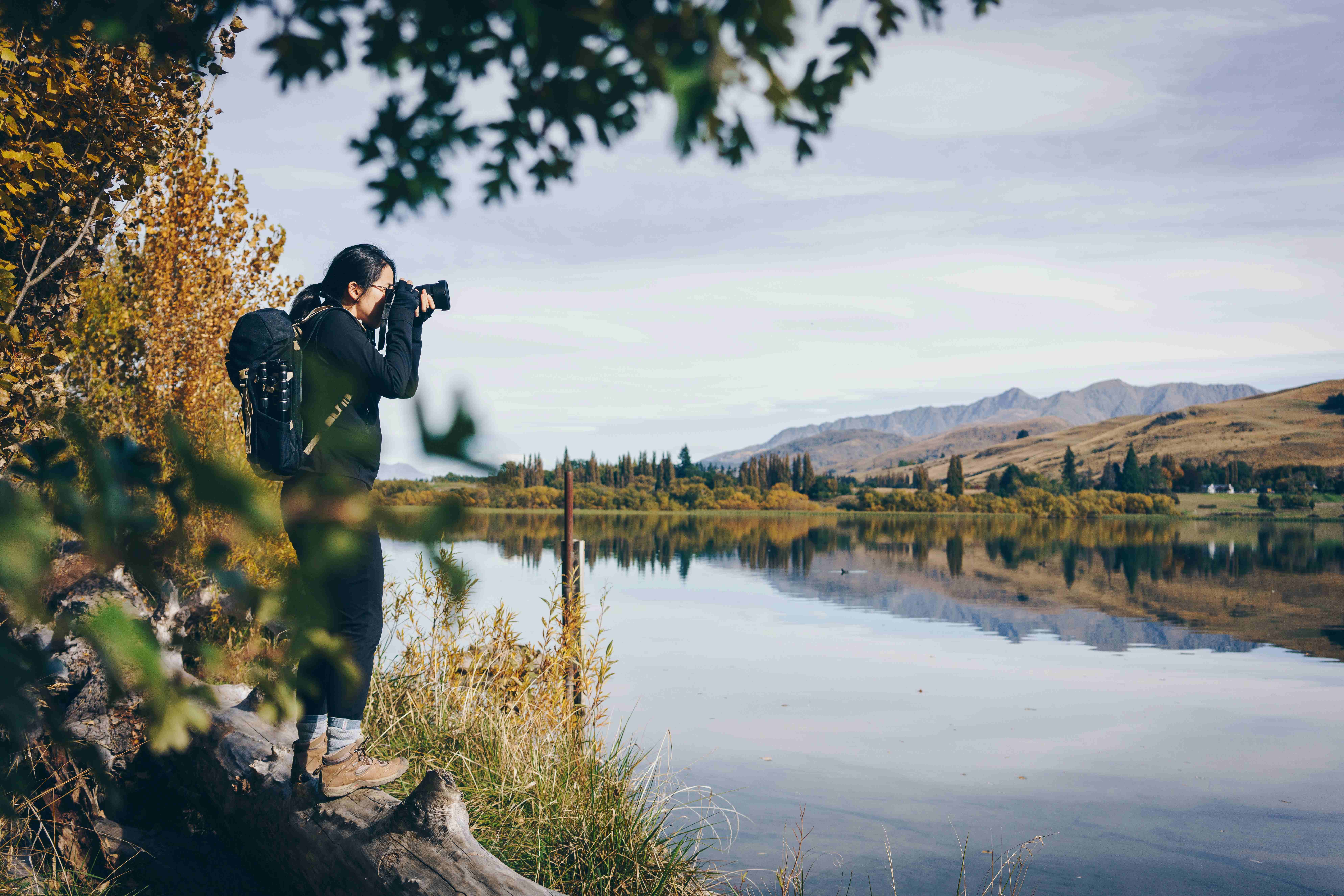
The tool shows your original and compressed image side by side with the exact file size reduction. Drag the slider to check whether you can spot the difference.
Download: original (3.4 MB) · compressed (472 KB)
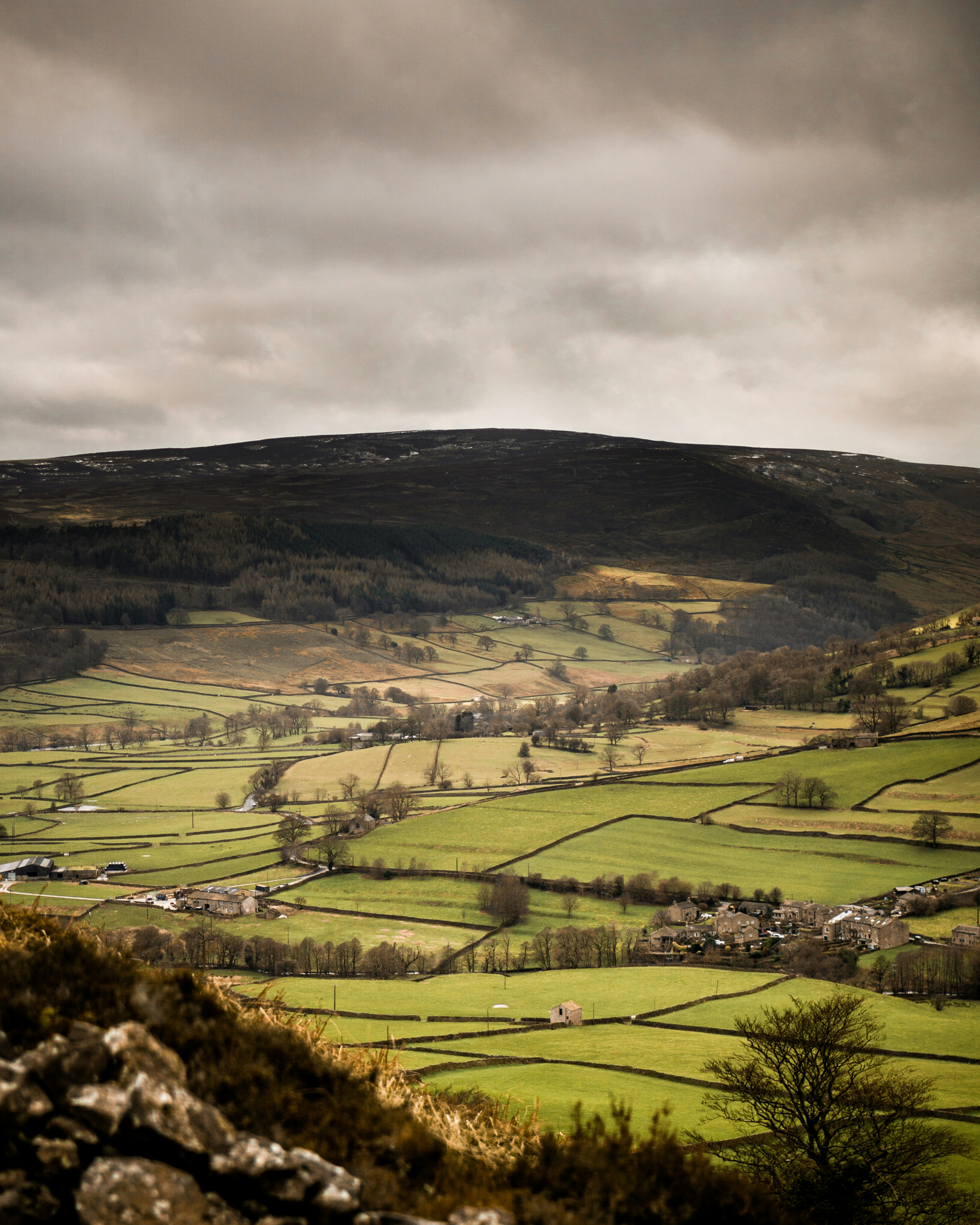
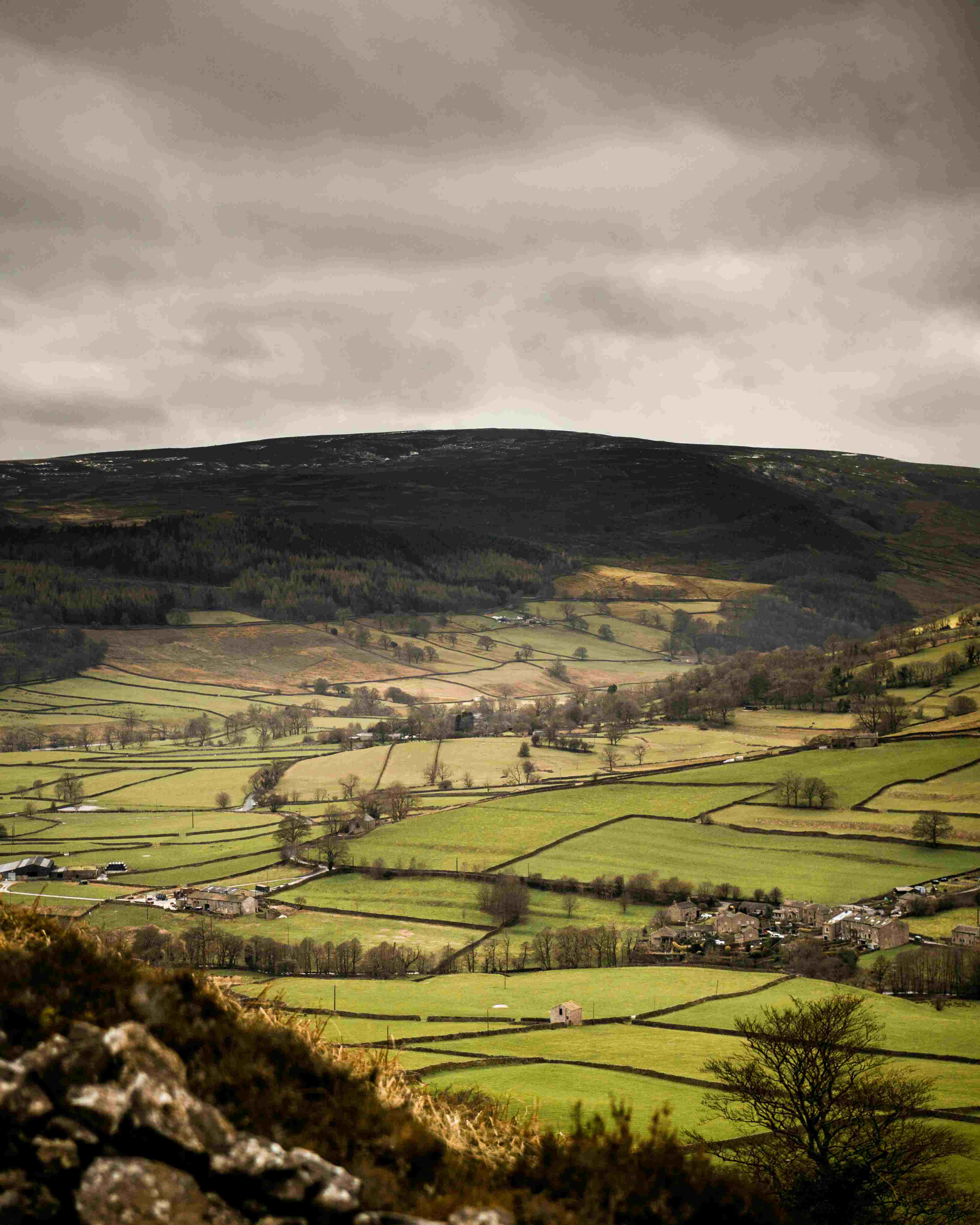
In most cases the compressed version is visually identical. The difference only shows up if you zoom to 100% and look at fine texture — grass blades, hair strands, fabric weave.
How compression works for each format
JPG is already lossy. The quality slider controls how much data the encoder throws away. At quality 85 a typical photo drops to 20-30% of its original size with no visible difference at normal viewing distances. Below 60 you start seeing blocky artifacts in smooth gradients.
PNG is lossless. There is no quality slider because PNG does not throw away data. The tool applies maximum lossless compression settings and strips metadata. If you need significant size reduction from a PNG, the tool will suggest switching to WebP.
WebP beats JPG on compression efficiency at the same visual quality. A 500 KB JPG at quality 85 typically becomes a 300-350 KB WebP at the same perceived sharpness. Every modern browser supports WebP.
AVIF compresses more aggressively than anything else available today. The same 500 KB JPG might become a 150-200 KB AVIF. The tradeoff is encoding speed — AVIF takes longer to compress. For single images the wait is a few seconds.
What is EXIF metadata and should you strip it?
Every photo from a phone or camera contains EXIF metadata — camera model, lens settings, GPS coordinates, date and time, color profile. This data can add 50-200 KB to the file size and includes your exact location.
The tool strips EXIF by default. This removes GPS coordinates for privacy, drops the ICC color profile for smaller files, and eliminates camera info that has no value on the web. You can turn stripping off in the settings if you need to preserve color profiles for print work.
What does the aggression slider do?
The aggression slider controls how hard the encoder tries to shrink the file. At low aggression it prioritizes visual quality and stops compressing when the file looks good. At high aggression it pushes harder — the file gets smaller but you might notice softness in detailed areas.
Think of it as a risk tolerance dial. Low aggression is safe for portfolio work and client-facing images. High aggression is fine for thumbnails, email attachments, and social media where the image will be viewed quickly at small size.
Download: original (7.8 MB) · compressed (1.5 MB)
How is this different from TinyPNG?
TinyPNG uploads your image to their servers. Their compression quality is good, but your file passes through a third party. The free tier limits you to 20 images per day at up to 5 MB each. High-resolution images require a paid plan.
MediaShed compresses locally in your browser using libvips — the same image processing library behind Sharp, Cloudinary, and imgproxy. Your files never leave your device. There is no per-image limit, no file size cap, and no daily quota.
For batch processing of hundreds of images, TinyPNG’s API is more practical. For one-off compression where privacy matters or the image is over 5 MB, local processing wins.
Common compression scenarios
Product photos for e-commerce. Marketplace platforms like Amazon and Shopify recommend images under 1 MB. A typical phone photo is 3-8 MB. Use the For Web preset to bring it under 200 KB, or For Email if you want higher quality at under 1 MB. Strip EXIF to remove GPS data before uploading product images — your shooting location is nobody’s business.
Blog hero images. These are usually the largest image on the page and the biggest contributor to slow load times. A 1200×630 hero image as a WebP at quality 80 is usually 60-100 KB — fast enough that it loads before the reader even scrolls. Use Recommended and check the result.
Email attachments. Most email providers limit attachments to 25 MB total, but images over 1 MB slow down the recipient’s inbox and take forever to load on mobile. The For Email preset targets under 1 MB per image, which is a good balance between quality and courtesy.
Social media. Every platform re-compresses your image on upload. Instagram, Twitter, and Facebook all apply their own lossy compression. Uploading a pre-compressed image gives you more control over the final result — you decide where quality drops, not their algorithm. The For Web preset works well for this.
When compression is not enough
Sometimes the target file size is impossible for the format. A detailed 4000×3000 photo cannot compress to 100 KB as a JPG without looking terrible. When this happens the tool suggests switching to a more efficient format — WebP or AVIF — which can often hit the target at acceptable quality.
If you need to reduce file size further without switching format, consider resizing the image. A 2000×1500 version of the same photo compresses to roughly a quarter of the size of the 4000×3000 original. The Image Format Converter can resize and convert in one step.
Troubleshooting
The compressed file is barely smaller. This happens with PNGs. PNG is lossless — the tool can only strip metadata and apply maximum lossless compression. If you need significant reduction, convert to WebP. A 2 MB PNG often becomes a 100 KB WebP at quality 85 with no visible difference.
The compressed image looks blurry. The target size is too aggressive for the image content. Try the Recommended preset instead of a specific target. Or switch to WebP or AVIF — they achieve smaller files at higher quality than JPG.
Colors look different after compression. This usually means the EXIF metadata contained an ICC color profile that was stripped. Turn off metadata stripping in settings if color accuracy matters more than file size — this is common for print-destined images.
Privacy
Your files never leave your device. The compression engine runs entirely in your browser using WebAssembly. No server, no upload, no queue. Close the tab and everything is gone. If you work with client photos, contracts, or anything sensitive, nothing is transmitted over the network.