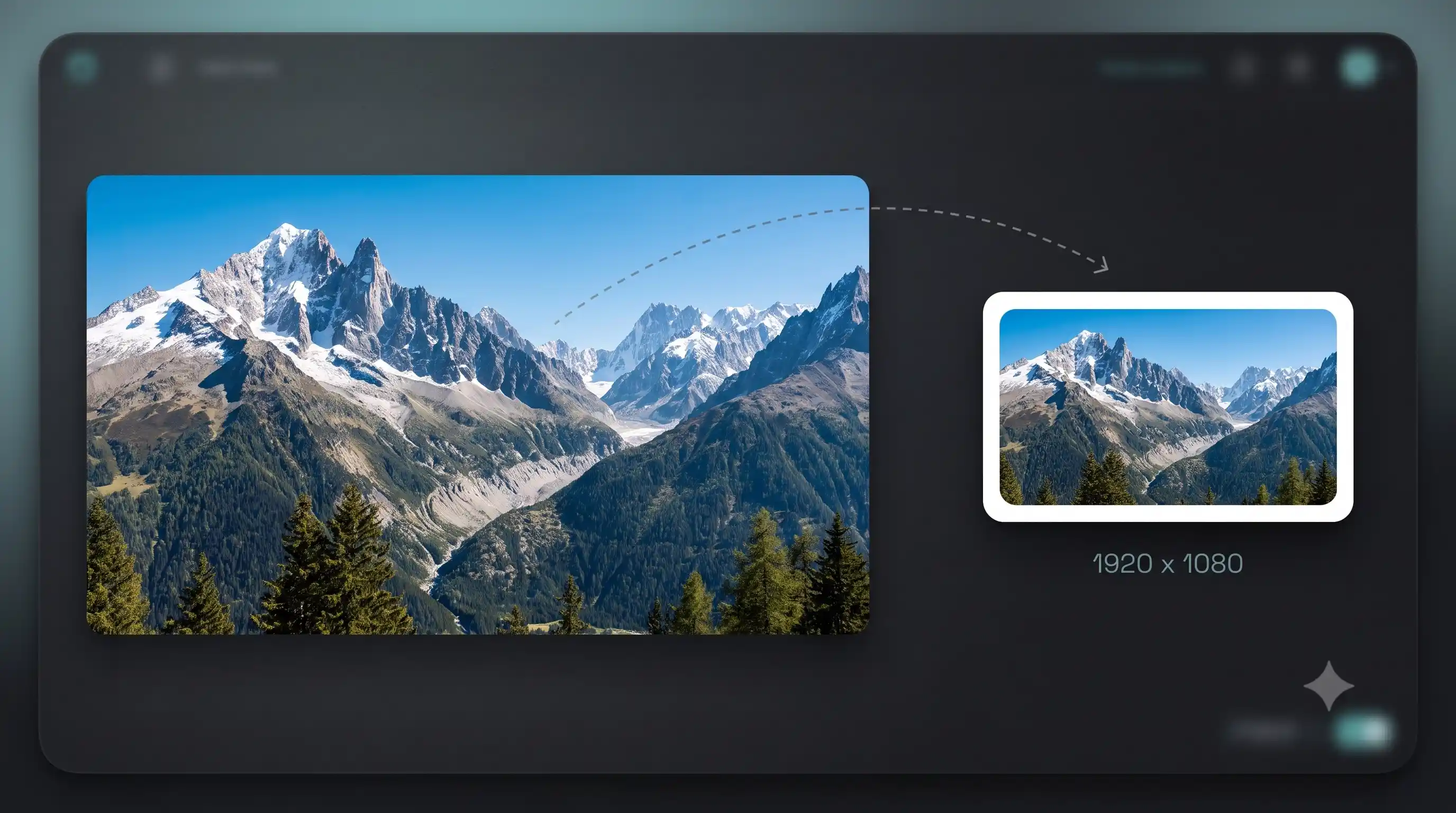
Remove background from any image, free.
or drag and drop · images, animated GIFs, animated WebP
100% LocalNo Uploads
How to remove background from a picture in 3 steps
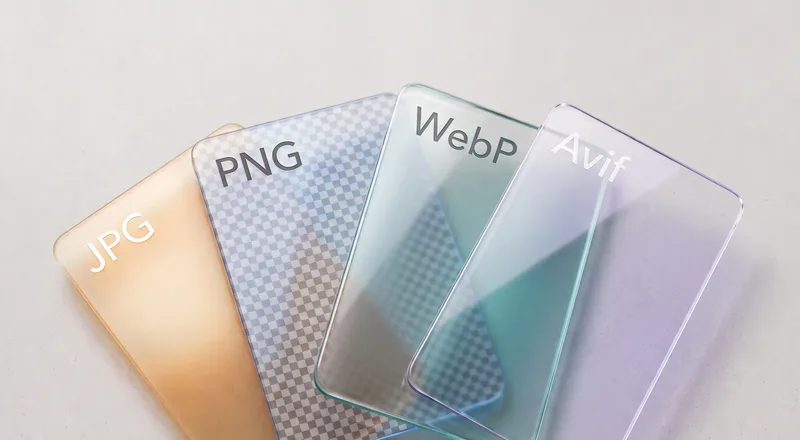
- Drop your image. Drag it onto the page or click to browse. PNG, JPG, WebP, GIF, and most other formats work.
- Pick a model. Fast is good enough for most photos. Portrait handles hair and skin better. Best gives you the sharpest cutout on anything.
- Download the result. Hover the output and grab your transparent PNG. Done.
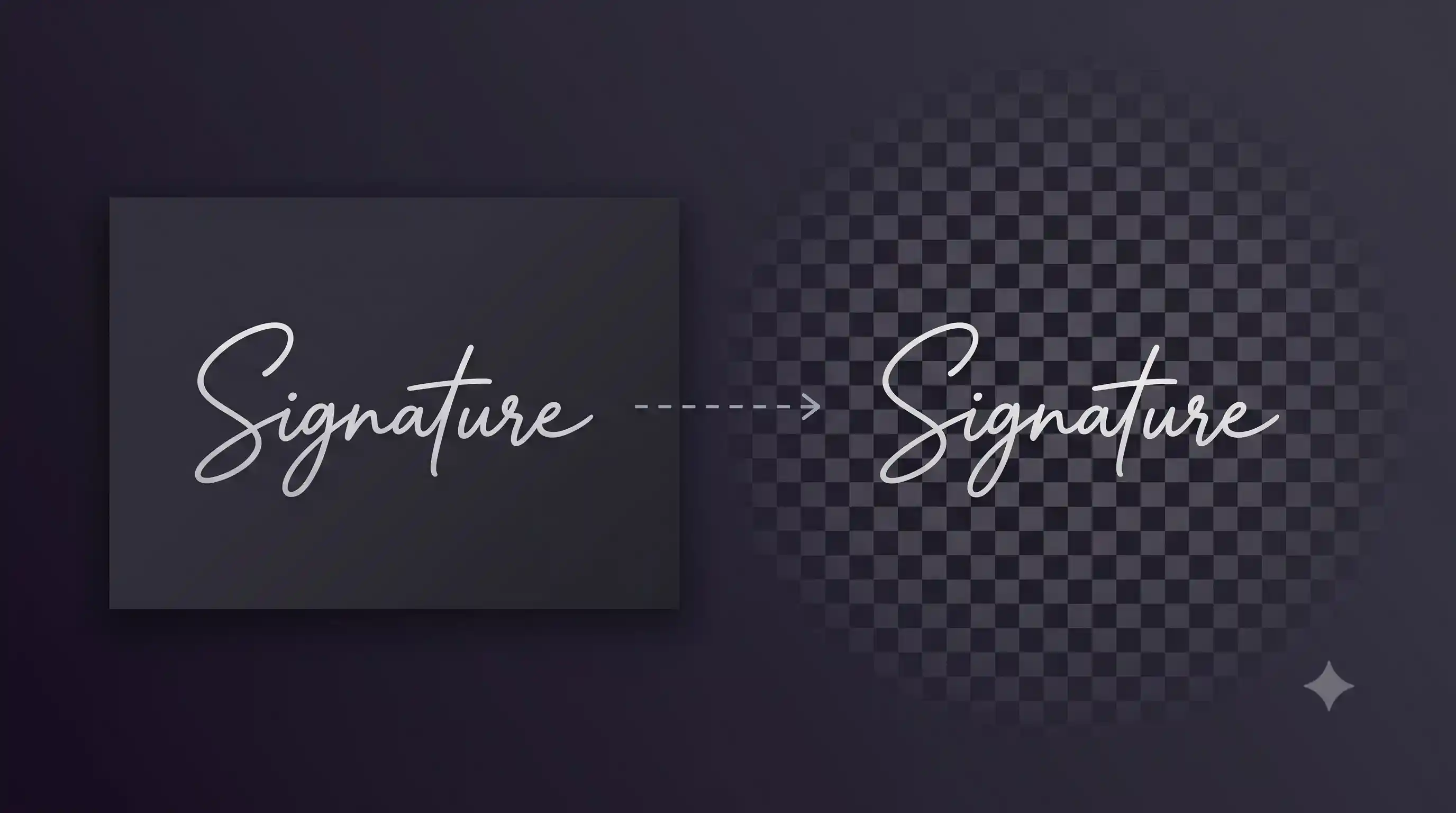
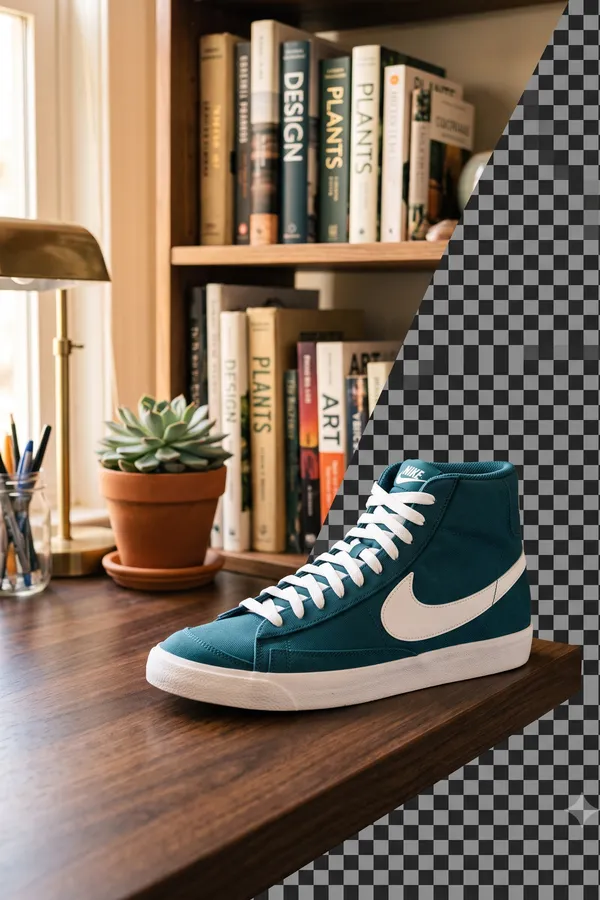
See it in action
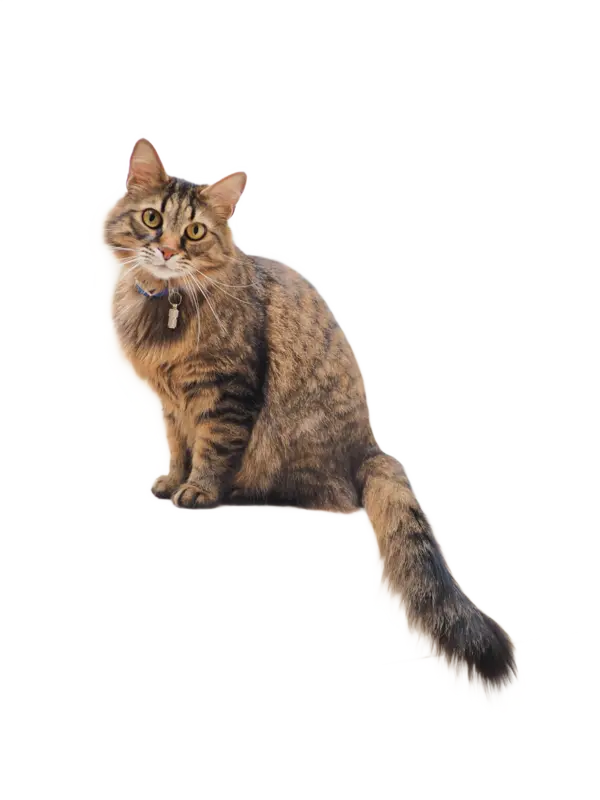

OriginalBackground removed
Drag the slider to compare.
Is it safe to use with private photos?
Every other background remover uploads your image to a server. This one does not. The AI model downloads once and runs entirely in your browser. There is no account to create, no data to share, and no server that ever sees your photos. You can disconnect from the internet after the page loads and it still works. Your images stay yours.
What if the edges look rough?
Switch to a larger model. Fast works well for clean, high-contrast subjects but can miss fine details like hair strands or thin jewelry. Portrait is trained on people and handles skin, hair, and clothing edges better. Best takes the longest to download but gives the sharpest result on any subject. You can also try the same image with different models and compare. Switching models does not require re-uploading the image.
FAQ
Is this really free?
Yes. No watermark, no per-image limit, no premium tier. This is a completely free background remover with unlimited use.
What image formats can I upload?
PNG, JPG, WebP, AVIF, BMP, GIF, and TIFF. Animated GIFs and animated WebPs work too. The tool processes each frame and gives you an animated WebP with the background removed.
Which model should I pick?
Start with Fast. Switch to Portrait if you are cutting out a person and the hair looks rough. Use Best when you need the cleanest edges on any subject, whether that is logos, products, or complex scenes.
Why is the first run slow?
The AI model downloads once. Fast is 4.7 MB, Portrait is 44 MB, Best is 176 MB. After that it is cached in your browser and loads instantly.
Does it work on mobile?
Yes. Chrome and Safari on modern phones work fine. Processing is slower than on a laptop since phones have less power.
How does the auto background removal work?
The tool runs a segmentation neural network in your browser using ONNX Runtime. The model identifies the main subject in the image and creates a mask. The mask is applied as an alpha channel to produce a transparent PNG. It works like a photo background eraser that automatically detects edges.
How is this different from remove.bg?
remove.bg uploads your photo to their servers and limits free use to 50 low-res images per month. This tool runs the AI entirely in your browser. No upload, no limit, no watermark. Your image never leaves your device.
Can I remove backgrounds in bulk?
Yes. Drop multiple files at once and they all get queued. The tool processes them one after another and you can download each result individually or all at once. There is no limit on how many images you can process.
Does it output HD quality?
Yes. The output resolution matches your input exactly. No downscaling, no quality reduction. You get a full-resolution transparent PNG or animated WebP.
How much RAM does this use?
Running AI models in the browser uses a lot of memory. All three models need at least 1-2 GB of RAM during processing, and Best can peak at 3 GB. This is normal for browser-based AI. The memory is released automatically after two minutes of inactivity. Close other tabs if your browser feels sluggish while processing.