Resize any image, free.
or drag and drop · any image format
100% LocalNo Uploads
How to resize an image in 3 steps
- Drop your image. Drag it onto the page or click to browse. Any common image format works.
- Set the size. Enter pixel dimensions, pick a percentage, or choose a preset for social media. Aspect ratio locks by default.
- Download the result. Your image resized in the same format as the original. Compare before and after side by side.
Does resizing reduce file size?
Yes. A smaller image has fewer pixels, which means a smaller file. Resizing a 4000x3000 photo down to 1920x1080 typically cuts the file size by 60-80%. This is one of the most effective ways to reduce image size for web pages, email, and social media.
Social media presets
Presets are built in for the most common sizes: Instagram post (1080x1080), Instagram story (1080x1920), Facebook cover (820x312), Twitter header (1500x500), LinkedIn banner (1584x396), YouTube thumbnail (1280x720), and more. Pick a preset and the tool fits your image to those dimensions while keeping the aspect ratio.
FAQ
Is this image resizer free?
Yes. No watermark, no file limit, no sign-up. Resize as many images as you want.
Does it keep the original format?
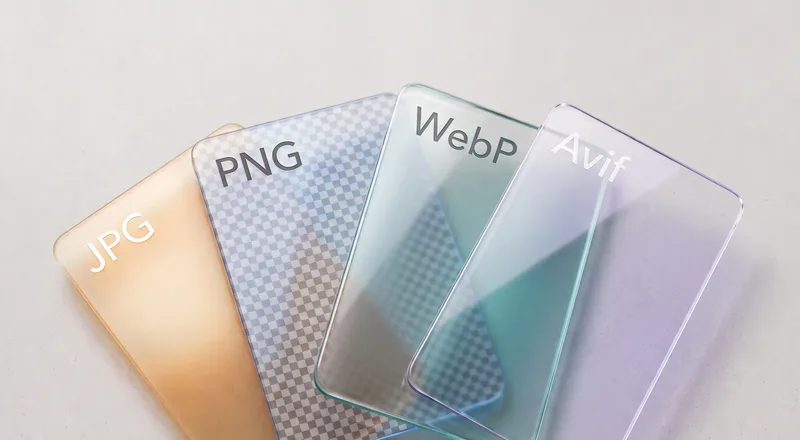
Yes. A JPG stays JPG, a PNG stays PNG, a WebP stays WebP. The resized image is saved in the same format as your input.
Can I resize by percentage?
Yes. Switch to the percentage mode and set any scale from 1% to 500%. The tool calculates the new pixel dimensions automatically.
Does it preserve aspect ratio?
By default, yes. The aspect ratio is locked so changing the width adjusts the height proportionally. You can unlock it if you need a specific non-proportional size.
What formats are supported?
JPG, PNG, WebP, AVIF, TIFF, GIF, BMP, HEIC/HEIF, and SVG as input. The output stays in the same format. GIF input is converted to WebP.
Does this upload my images?
No. The image engine runs entirely in your browser using WebAssembly. Your files never leave your device.
Can I resize multiple images at once?
Yes. Drop multiple files and they all get resized with the same settings. Download each individually or all at once as a zip.
What about the quality slider?
It controls output quality for lossy formats like JPG, WebP, and AVIF. Higher values mean better quality but larger files. It has no effect on PNG which is always lossless.