Convert images to PDF, free.
or drag and drop images to combine into a PDF
100% LocalNo Uploads
How to convert images to PDF
- Drop your images. Drag one or more images onto the page. JPG, PNG, WebP, HEIC, and other formats all work.
- Arrange and configure. Drag to reorder pages. Pick your page size, orientation, and margin.
- Create and download. Click Create PDF. The file is generated in your browser and ready to download instantly.
Does this upload my images to a server?
No. The PDF is built entirely in your browser using a JavaScript library. There is no server involved, no upload queue, and nobody else sees your files. This makes it safe for private documents, ID photos, scanned certificates, and client work. Works offline after the page loads.
When to use Fit to Image
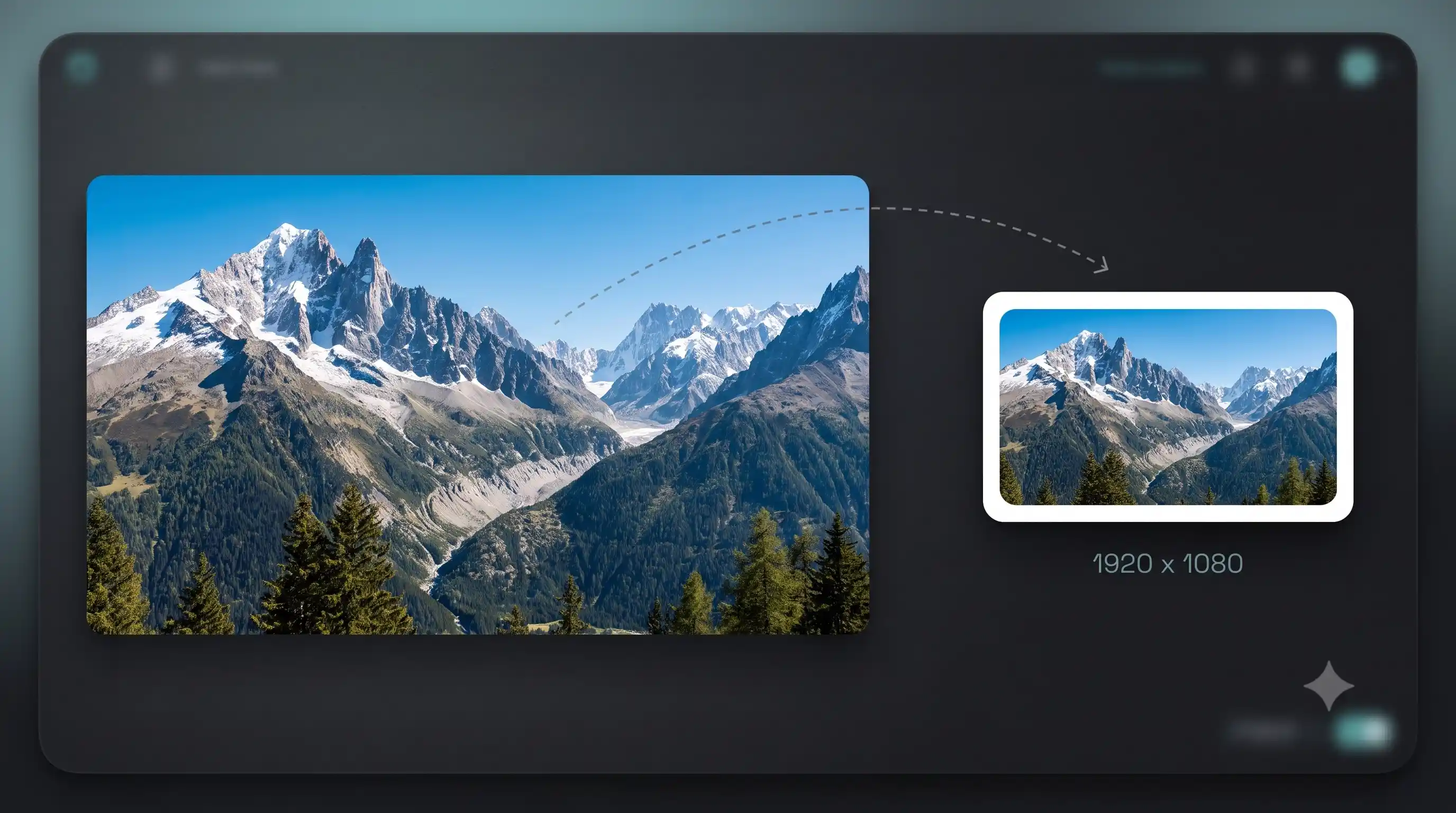
If you want the PDF pages to exactly match your image dimensions without any white space or cropping, use the "Fit to image" page size. Each page will be sized to that specific image. This is useful for scanned documents, screenshots, or any case where you want the PDF to look exactly like the original image.
FAQ
Is this image to PDF converter free?
Yes. No watermark, no file limit, no sign-up. Convert as many images as you want.
Can I combine multiple images into one PDF?
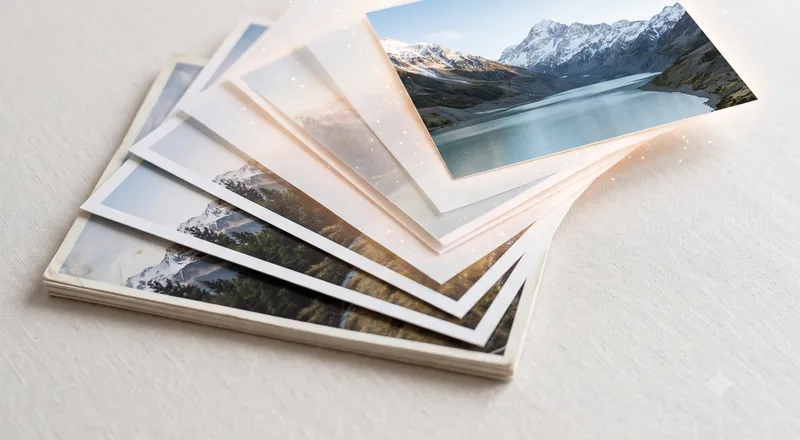
Yes. Drop multiple images and they become pages in a single PDF. Drag to reorder them before generating.
What image formats are supported?
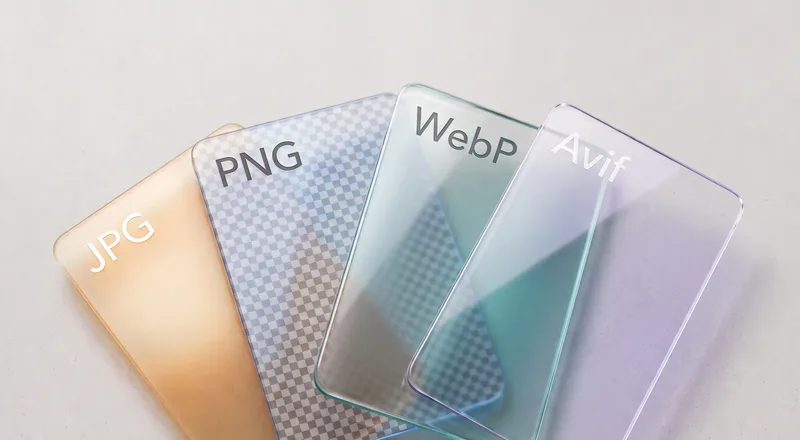
JPG, PNG, WebP, AVIF, GIF, BMP, HEIC, and TIFF. Any format your browser can display works as input.
Does this upload my images?
No. The PDF is generated entirely in your browser using JavaScript. Your images never leave your device.
Can I set the page size?
Yes. Choose A4, Letter, or Fit to Image. Fit to Image makes each PDF page match the exact dimensions of that image.
Does it preserve image quality?
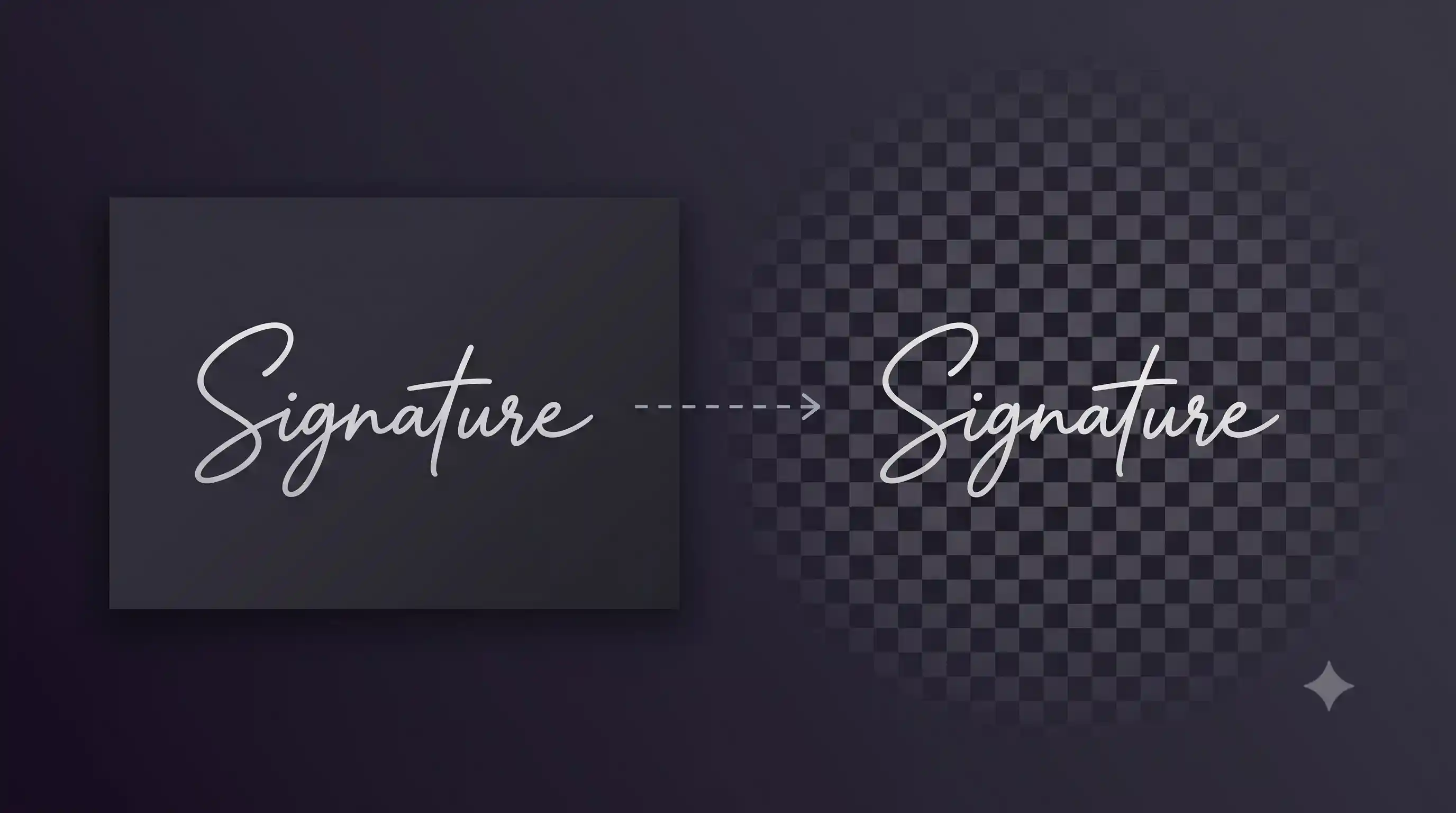
Yes. You control the JPEG quality for images embedded in the PDF. At 85+ the difference from the original is invisible. PNG images with transparency are embedded losslessly.
Is there a file size limit?
No hard limit. Very large images or many pages may take longer to process but there is no restriction.
Can I choose portrait or landscape?
Yes. Set it to Auto and each page rotates to match the image orientation. Or force all pages to portrait or landscape.