You have a PNG screenshot that is 3 MB. You need it as a WebP at under 200 KB for your website. Or you have a HEIF photo from your iPhone that your email client refuses to attach. Format conversion is one of the most common image tasks, and most online tools upload your file to a server to do it.
What you need
A browser. The image engine downloads once on first use (about 8 MB), caches itself, and runs locally from that point on. No account, no install. Chrome, Firefox, Safari, and Edge all work. Mobile browsers work too — conversion is slower on phones but the results are identical.
Step 1 — Upload your image
Go to the Image Format Converter and drop your image onto the page. Almost any input format works: PNG, JPG, WebP, AVIF, TIFF, GIF, BMP, HEIF, and SVG. You can also click the upload area to browse.
Step 2 — Pick an output format and adjust settings
Choose your target format from the dropdown. For lossy formats (JPG, WebP, AVIF) you get a quality slider — higher values keep more detail, lower values produce smaller files.
- PNG — lossless, no quality slider. Every pixel stays identical. Use for screenshots, logos, and anything with text or hard edges.
- JPG — lossy, universal support. The default choice when you need small files and do not need transparency.
- WebP — lossy or lossless, smaller than both PNG and JPG at comparable quality. Supports transparency. The best all-around format for web images.
- AVIF — the most efficient lossy format available. Dramatically smaller files at the same visual quality. Browser support is newer but Chrome, Firefox, and Safari all handle it.
Open the Advanced section to resize while converting. Aspect ratio locks by default so the image does not stretch.
Step 3 — Compare and download
The tool shows your original and converted image side by side with the file size difference. Drag the slider to compare.
Download: original PNG (2.9 MB) · converted WebP (16 KB)
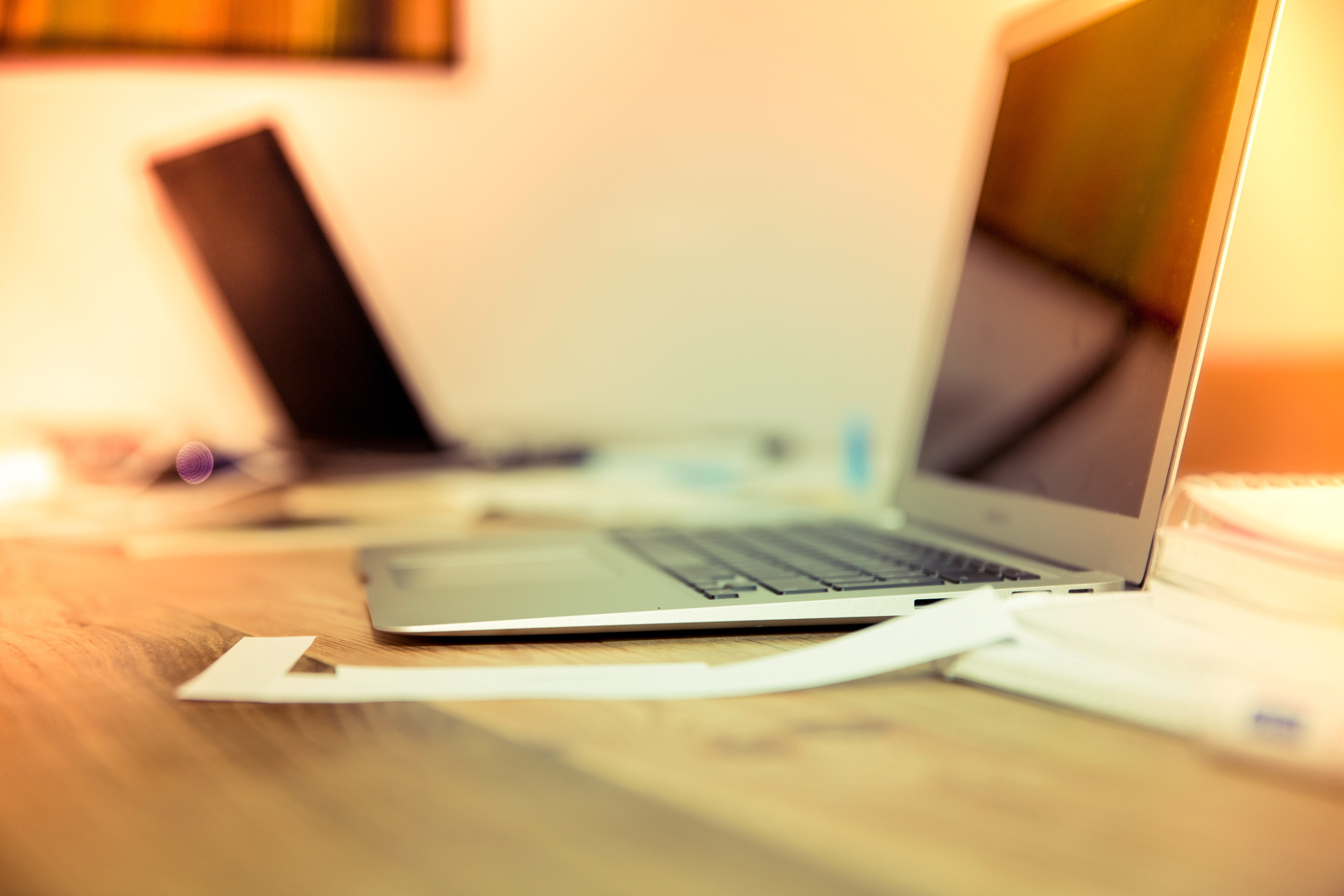
That is a 99% reduction in file size. The visual difference is minimal — the WebP version is slightly softer in out-of-focus areas, but at normal viewing size you would not notice.
Which format should you use?
This depends on what the image is and where it is going.
Screenshots and UI mockups → PNG. Text and sharp edges look terrible in lossy formats. PNG preserves every pixel. If the PNG is too large, convert to lossless WebP — usually 20-30% smaller with zero quality loss.
Photos for websites → WebP. It beats JPG on file size at the same visual quality, supports transparency if you need it, and every modern browser handles it. This is the right default for most web images in 2026.
Photos where every KB matters → AVIF. Blog hero images, email headers, social media cards. AVIF at quality 70 often looks as good as WebP at quality 85 — at half the file size.
Photos for email or documents → JPG. Not the most efficient, but universally supported. Every email client, PDF viewer, and office app opens JPGs without question.
Logos and icons → Keep as SVG if you have it. If you need a raster version, convert to PNG at the exact dimensions you need.
Common conversions
PNG to WebP
The most popular conversion. A typical PNG screenshot might be 1-3 MB. The same image as a lossless WebP is usually 20-30% smaller with no quality loss at all. As a lossy WebP at quality 85 it can drop to 5-10% of the original size. If you are building a website, switching from PNG to WebP is one of the easiest ways to speed up page load.
JPG to AVIF
AVIF is the most efficient photo format available today. A 500 KB JPG at quality 85 typically becomes a 100-150 KB AVIF at the same visual quality. The tradeoff is encoding speed — AVIF takes longer to compress than JPG or WebP. For single images the wait is a few seconds at most.
HEIF to JPG
HEIF is the default photo format on iPhones. It produces small files with good quality, but most websites, email clients, and design tools still do not accept it. Converting HEIF to JPG gives you universal compatibility. Converting to WebP gives you even smaller files that every modern browser supports.
Animated GIF to WebP
If you drop an animated GIF, the tool preserves all frames, timing, and loop settings. The output is an animated WebP that is usually 30-50% smaller than the original GIF with better color depth (WebP supports 24-bit color vs GIF’s 256-color palette). This is useful for reaction images, product turntables, and short video clips exported as GIFs.
Converting to PNG, JPG, or AVIF extracts just the first frame since those formats do not support animation.
How does SVG input work?
SVG is a vector format — it scales to any size without losing sharpness. When you drop an SVG, the tool rasterizes it at the dimensions you choose and converts to your target format. This is useful when you need a PNG version of a logo at a specific resolution, or a WebP version for a web page where you want a fixed size and smaller file. The rasterizer handles gradients, text, filters, and embedded images.
How is this different from other online converters?
Most browser-based converters use the Canvas API to re-encode your image. That gives you basic quality control and nothing else — no proper color management, no advanced encoder settings, no AVIF support in many cases.
This tool runs libvips — the same image processing library used by Sharp, Cloudinary, and imgproxy — compiled to WebAssembly. You get better compression ratios, proper color handling, full encoder control, and support for input formats that Canvas cannot handle (TIFF, HEIF, SVG).
The other difference: your files stay on your device. Most online converters upload your image to a server for processing. Here, the engine runs in your browser. Nothing is transmitted over the network.
Can you resize while converting?
Yes. Open the Advanced section and set a custom width and height. Aspect ratio locks by default so the image does not stretch. Unlock it if you need a specific crop dimension. Resizing happens in the same pass as the format conversion so there is no extra step or quality loss from double-encoding.
This is useful when you need a specific size for a platform — 1200×630 for an Open Graph image, 800×800 for an Instagram post, or 150×150 for an avatar.
Does converting lose quality?
It depends on the format. PNG is lossless — converting from any format to PNG preserves every pixel. Converting between lossy formats (JPG → WebP, or WebP → AVIF) does lose a small amount of quality because the image gets re-encoded. Each lossy re-encoding is like making a photocopy of a photocopy.
To minimize quality loss when converting between lossy formats, keep the quality slider at 90 or higher. If you are going from a high-quality JPG to WebP, the WebP will look identical at the same quality setting — and the file will be smaller because WebP is a more efficient encoder.
Converting from lossy to lossless (JPG → PNG) does not recover lost quality. The PNG will be pixel-identical to the JPG, just in a lossless container. The file will be larger, not better.
Does it preserve transparency?
PNG, WebP, and AVIF all support transparency (alpha channel). If your source image has a transparent background, it carries through to the output in these formats.
JPG does not support transparency. When you convert a transparent image to JPG, you pick a background color to replace the transparent areas. White is the default, but you can choose any color. This is important for logos — a logo with a transparent background converted to JPG on white looks fine, but converted on the wrong color looks wrong.
Troubleshooting
The first conversion is slow. The image engine is about 8 MB. It downloads on first use and caches in your browser. Every subsequent conversion loads from cache and starts immediately. If it seems stuck, check your network connection — the download might have stalled.
Colors shift after converting. Some source images contain ICC color profiles that affect how colors render. If the output looks slightly different — warmer, cooler, or more saturated — the color profile was either stripped or not carried to the new format. For most web use this does not matter. For print work, keep the source format or convert to PNG which preserves embedded profiles.
The output file is larger than the input. This happens when converting from a lossy format to a lossless one (JPG → PNG) or when using a quality setting that is higher than the source. A 200 KB JPG at quality 75 converted to PNG will be 1-2 MB because PNG stores every pixel without compression loss. This is normal — you traded size for fidelity.
Privacy
Your files never leave your device. The image engine runs entirely in your browser using WebAssembly. No server, no upload, no queue. Close the tab and everything is gone. Convert client files, contracts, medical images, or anything sensitive without trusting a third party with your data.